
What Can You Automate With UI.Vision RPA?
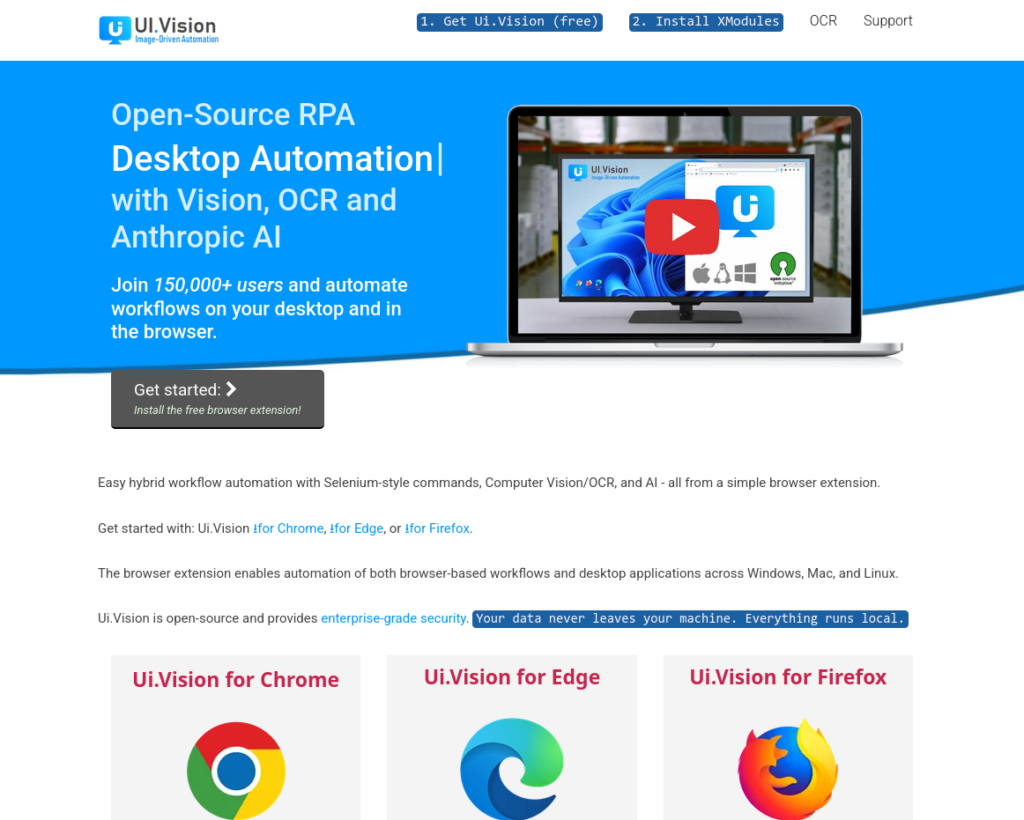
UI.Vision RPA is a tool that helps you automate repetitive computer work. In simple words, it can repeat actions for you, such as opening websites, clicking buttons, filling forms, checking pages, taking screenshots, downloading files, and even working with desktop programs. If you often do the same task again and again on your computer, it may help you save time. It is especially useful for browser automation, desktop automation, website testing, screen scraping, OCR, and simple workflow automation. It works as a browser extension for Chrome, Edge, and Firefox. For more advanced desktop automation, it can also use extra local modules called XModules, which are available for Windows, macOS, and Linux.
What Does RPA Mean?
RPA means Robotic Process Automation. This does not mean a physical robot. It means software that can repeat computer actions that a human would normally do manually. For example, imagine that every day you need to open a website, log in, download a file, rename it, and check if the page contains a certain message. Doing that once is not a big problem. Doing it every day, or doing it for 100 pages, becomes boring and time-consuming. This is where an RPA tool like UI.Vision can help. You create a macro once, test it, and then let the tool repeat the same steps for you.
What Is UI.Vision Used For?
It can be used for many different types of automation. Some people use it for testing websites. Some use it for filling forms. Some use it for checking many URLs. Others use it for screen scraping, screenshots, or desktop automation. Here are simple examples of what UI.Vision can do:
- Open a list of websites one by one.
- Click buttons automatically.
- Fill online forms.
- Check whether a page contains certain text.
- Download files from a website.
- Upload files to a website.
- Take screenshots automatically.
- Read text from the screen with OCR.
- Work with desktop programs using image recognition.
- Repeat the same task using data from a CSV file.
Official website: https://ui.vision/
How UI.Vision Browser Automation Works
The most common use of UI.Vision is browser automation. This means it can automate actions inside websites and web apps. For example, instead of manually opening a page, clicking a button, waiting for something to load, copying a value, and moving to the next page, you can create a macro that does those steps automatically. This can be useful for everyday tasks such as:
- testing if a contact form works;
- checking if a button or message appears on a page;
- opening many URLs from a list;
- filling the same type of form many times;
- taking screenshots of pages;
- downloading files from multiple pages;
- checking website changes after an update.
UI.Vision supports Selenium-style commands, which makes it useful for people who already know browser automation. But it can also be used by beginners because it has recording and replay features.
Official web automation page: https://ui.vision/rpa#web
Can UI.Vision Fill Forms Automatically?
Yes. Form filling is one of the easiest examples to understand. Let’s say you need to fill the same online form many times, but with different names, emails, URLs, or other details. Instead of typing everything manually, UI.Vision can use a CSV file. A CSV file is basically a simple spreadsheet-like file with rows and columns. It can read one row, fill the form, submit it, then move to the next row. This can save a lot of time if the task is repetitive and allowed by the website you are using.
Can UI.Vision Test Websites?
Yes, it can be used for website testing and UI testing. This means it can check if a website behaves as expected. For example, you can create a macro that checks:
- whether a page loads;
- whether a button is visible;
- whether a contact form works;
- whether a specific image appears;
- whether expected text is present;
- whether a file download starts;
- whether a page still looks correct after changes.
This can be useful for website owners, developers, SEO workers, and anyone who manages websites. Instead of manually checking the same things after every update, you can automate some of those checks.
What Makes UI.Vision Different From Basic Browser Recorders?
Many automation tools can click buttons and fill forms in a browser. Ui.Vision is different because it also includes visual automation features. Normal browser automation usually looks at the code of the web page. This works well when the page is built in a simple way and the elements are easy to identify. But some websites and apps are more difficult. A button may be inside a canvas element, an image, a custom interface, or a part of the screen that is not easy to select with normal automation commands. Ui.Vision can also use image recognition and OCR. This means it can look at what is visible on the screen. It can search for an image, find text, click on something visually, and work with interfaces where normal selectors are not enough.
What Is OCR in UI.Vision?
OCR means Optical Character Recognition. In simple words, OCR reads text from an image or from the screen. For example, if text is not available as normal selectable text, but it appears visually on the screen, OCR may help the automation read it. This can be useful for screenshots, scanned documents, desktop applications, remote systems, or visual interfaces. OCR is not magic and it is not always perfect. It depends on the quality of the image, the font, the contrast, and the layout. But when used correctly, it can make automation much more flexible.
What Is UI.Vision Desktop Automation?
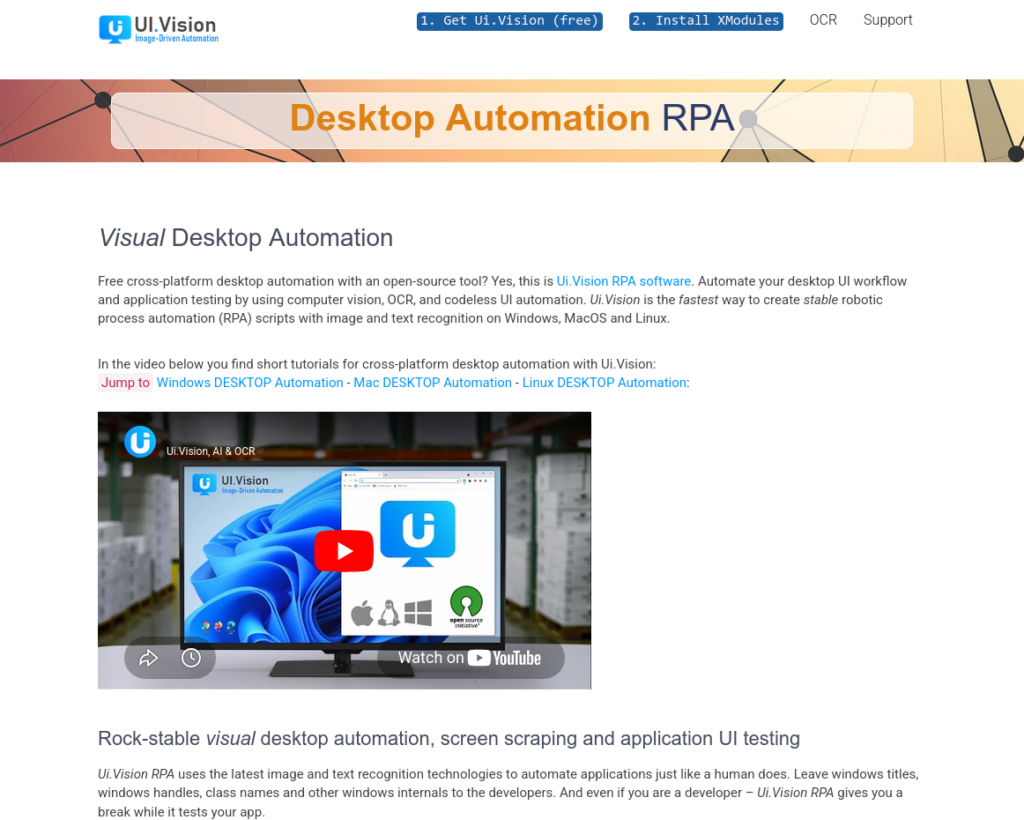
Desktop automation means automating tasks outside the browser. This can include normal desktop applications, file windows, settings screens, or software that does not run inside a website. For desktop automation, UI.Vision uses XModules. These modules give it more control over the local computer. With them, it can simulate mouse clicks, keyboard typing, image recognition, OCR, and other actions that are needed for desktop workflows. This is useful when you need to automate a program that does not have a normal API, does not work inside a browser, or cannot be controlled with regular web automation.
Official desktop automation page: https://ui.vision/rpa/x/desktop-automation
What Are UI.Vision XModules?
XModules are extra local modules for UI.Vision. They are separate from the browser extension and are installed on your computer. A browser extension has limits. It can work inside the browser, but it cannot fully control your desktop by itself. XModules add the extra features needed for deeper automation, such as real mouse clicks, keyboard input, desktop image recognition, local file access, and desktop screenshots. In simple words:
- UI.Vision browser extension = good for browser automation.
- UI.Vision with XModules = better for desktop automation and more advanced local tasks.
Official XModules page: https://ui.vision/rpa/x
UI.Vision Video Overview
The official UI.Vision video below gives a visual overview of RPA software, web automation, and desktop automation.
Who Should Use UI.Vision?
It can be useful for anyone who repeats the same computer task often. You do not have to be a programmer to understand the basic idea. If the task is repetitive, visual, browser-based, or desktop-based, it may be a candidate for automation. It may be useful for:
- Website owners who want to test pages, forms, and buttons.
- SEO workers who need to check many URLs or repeated page elements.
- Developers who need browser and UI testing.
- Data workers who process lists, pages, or repeated inputs.
- Support workers who repeat admin panel tasks.
- Power users who want to save time on boring computer work.
Everyday Examples of UI.Vision Automation
Here are some simple everyday examples that make Ui.Vision easier to understand:
Example 1: Checking Many URLs
You have a list of URLs and want to check whether each page contains a certain word, button, or message. UI.Vision can open each URL from a CSV file, check the page, and move to the next one.
Example 2: Testing a Contact Form
You want to make sure your website contact form still works after plugin updates. UI.Vision can open the contact page, fill the form, submit it, and check whether the success message appears.
Example 3: Taking Screenshots Automatically
You need screenshots of several pages. Instead of opening each page manually and taking screenshots one by one, UI.Vision can repeat the process.
Example 4: Reading Text From the Screen
Some information may appear visually but may not be easy to copy. OCR can help UI.Vision read text from the screen and use it inside an automation workflow.
Example 5: Working With a Desktop Program
If a desktop application has buttons or fields that need to be clicked repeatedly, UI.Vision desktop automation may help by using image recognition, mouse clicks, and keyboard input.
When UI.Vision Is a Good Choice
Ui.Vision is a good choice when the task is repetitive and happens in a browser or on the desktop. It is also useful when you need a visual automation tool instead of a purely code-based solution. It can be a good choice when:
- you repeat the same steps often;
- you need to test website elements;
- you need to process a list of pages;
- you need screenshots or visual checks;
- you need to automate desktop software;
- you want to use OCR or image recognition;
- you want to build automation without creating full custom software.
When UI.Vision May Not Be the Best Choice
UI.Vision is useful, but it is not the best solution for every situation. If a website or service provides an official API, using the API is often cleaner and more reliable. An API is a direct way for software to communicate with another service. It is usually more stable than clicking buttons on a website. If the task is very large, very fast, or needs to run on a server without a visible screen, a custom script may be better. If the website layout changes often, visual automation may also need regular fixing. In short, UI.Vision is best for practical UI automation. It is not always the best tool for large back-end systems or tasks that already have a proper API.
Is UI.Vision Beginner-Friendly?
UI.Vision can be beginner-friendly for simple tasks, especially because it supports recording and replaying actions. However, advanced automation still takes time to learn. The best way to start is not to automate a huge task immediately. Start with something small:
- open one page;
- click one button;
- check one piece of text;
- take one screenshot;
- then slowly add more steps.
This step-by-step approach is more reliable than trying to build a big macro on the first attempt.
Important Note About Responsible Automation
Automation should be used responsibly. Just because a tool can automate something does not always mean it should be automated. Before automating a website, check whether the website allows that kind of use. Avoid aggressive automation, avoid private or restricted information, and do not use automation in a way that harms websites or other users. For personal productivity, testing your own websites, and repeating allowed workflows, automation can be very useful. For spammy or abusive activity, it can create problems.
Final Thoughts
UI.Vision RPA is a practical automation tool for browser tasks, desktop workflows, website testing, visual checks, OCR, screenshots, CSV-based automation, and repetitive computer work. Its biggest advantage is that it combines several automation methods in one tool. It can work like a browser automation recorder, but it can also use computer vision and OCR when normal browser automation is not enough. With XModules, it can also move beyond the browser and work with desktop applications. For beginners, the best approach is simple: start with one small macro, test it carefully, and expand it only after it works reliably.
Official website: https://ui.vision/